

This feature is only available for customers on an Enterprise plan, and is restricted to Owner and Admin user roles. Please contact your Customer Support Manager or support@mezmo.com for more information.
Step 1: Get Your Mezmo Single Sign On URL
- In your Mezmo app go to Settings > Organization > Access Management.
- Go to SAML Configuration and copy the URL under Single Sign On URL.
- Enable SAML Sign-in
- Keep this URL available since it will be used in Step 2: Configure Azure.
Step 2: Configure Azure
- In Azure Portal go to Enterprise Applications and then into your Mezmo SCIM (if you’ve created one) or Create your own application
- Click Set up single sign on.
-
Under Basic SAML Configuration click Edit and enter the following values (replacing 123456789 with your account id
- Identifier (Entity ID):
logdna-saml/123456789 - Reply URL (Assertion Consumer Service URL):
https://app.logdna.com/auth/saml-consume/123456789 - Sign on URL:
https://app.logdna.com/auth/saml/123456789
- Identifier (Entity ID):
- Click Save
Step 3: Update Mezmo SAML Configuration
- From section 4 in the Azure setup, please copy the value from Login URL:
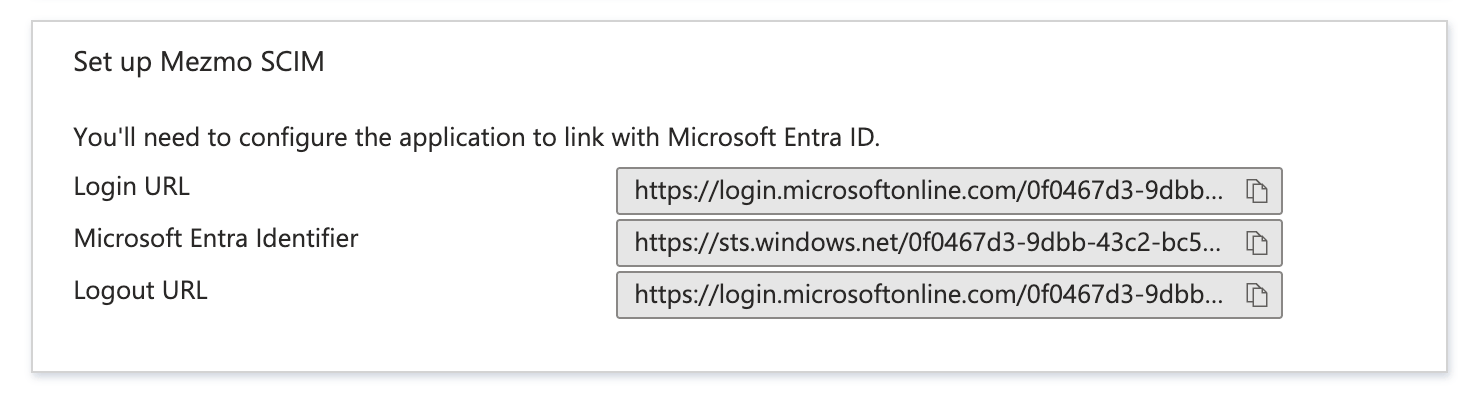
- Paste this value in Mezmo’s Identity provider sign-in URL field.
- From section 3 in Azure, download the Federation Metadata XML
- Drop this file in Mezmo’s Drop metadata.xml here to begin
- Finally click Save Config