
The Log Viewer is where you can view all your logs, filter data, and create custom views.
When opening the Log Viewer for the first time, you'll see all your logs for any apps or hosts added.
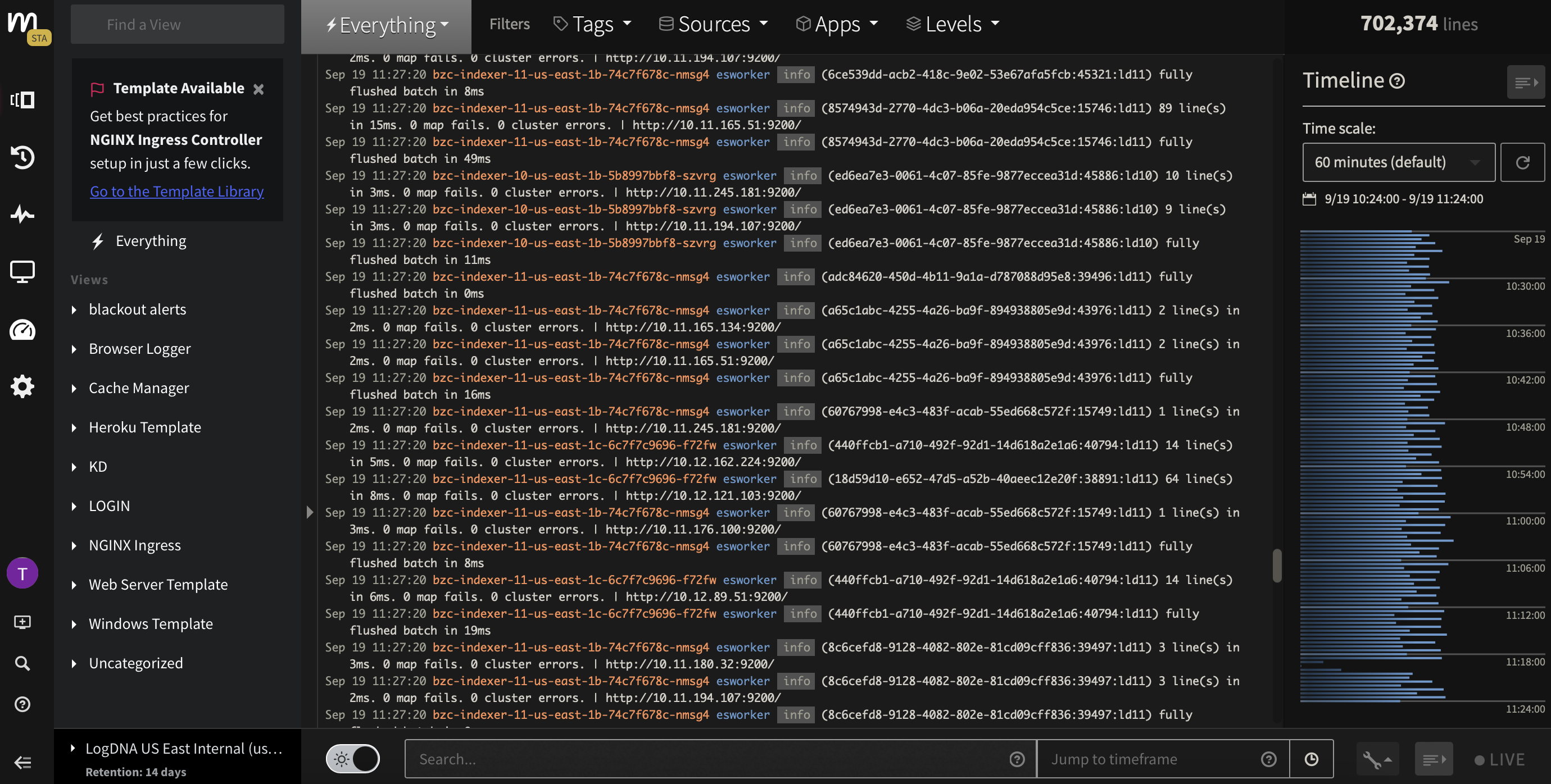
Views
Any Views you create will appear here. Use Views to narrow down the data you want to see. Learn more in Create and Edit Views.

Filter Toolbar
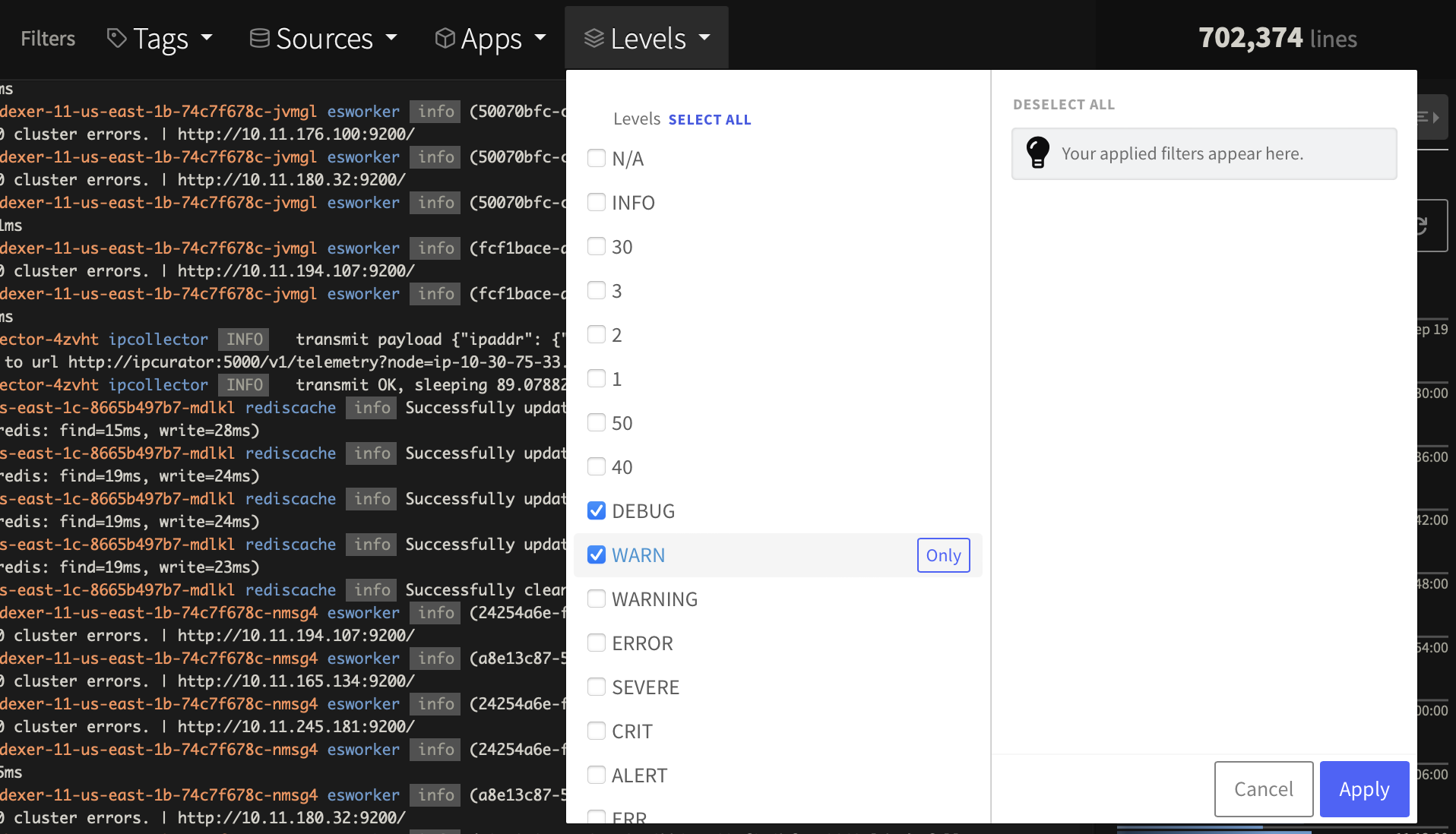
Further narrow down logs by filtering on Tags, Sources, Apps, and Levels. Use the Mezmo Logging Agent to add data.
Search and Custom Templates
Check out Search and Filter Log Data for more information about using the search field, and Parse Logs with Custom Templates to learn how to create search templates based on your parameters.

Timeline
Use the timeline to find trends. Learn how in View Log Data by Timeline.

Related Topics
- Format Log Lines with Custom Line Templates
- View Log Data by Timeline
- Create and Edit Views
- Add Alerts to Views
- Terraform Provider for Mezmo
- AppOptics Alert Integration
- Datadog Alert Integration
- Email Alert Integration
- OpsGenie Alert Integration
- PagerDuty Alert Integration
- PagerDuty Auto-resolve Settings
- Slack Alert Integration
- Sysdig Alert Integration
- VictorOps Alert Integration
- Webhook Alert Integration
Was this page helpful?