
This feature is only available for customers on an Enterprise plan, and is restricted to Owner and Admin user roles. Please contact your Customer Support Manager or support@mezmo.com for more information.
Step 1: Get Your Mezmo Single Sign On URL
- In your Mezmo app go to Settings > Organization > Access Management.
- Go to SAML Configuration and copy the URL under Single Sign On URL.
- Enable SAML Sign-in
- Keep this URL available since it will be used in Step 2: Configure Azure.
Step 2: Configure Azure
In Azure Portal go to Enterprise Applications and then into your Mezmo SCIM (if you've created one) or Create your own application
Click Set up single sign on.
Under Basic SAML Configuration click Edit and enter the following values (replacing 123456789 with your account id
- Identifier (Entity ID):
logdna-saml/123456789 - Reply URL (Assertion Consumer Service URL):
https://app.logdna.com/auth/saml-consume/123456789 - Sign on URL:
https://app.logdna.com/auth/saml/123456789
- Identifier (Entity ID):
Click Save
Step 3: Update Mezmo SAML Configuration
- From section 4 in the Azure setup, please copy the value from Login URL:
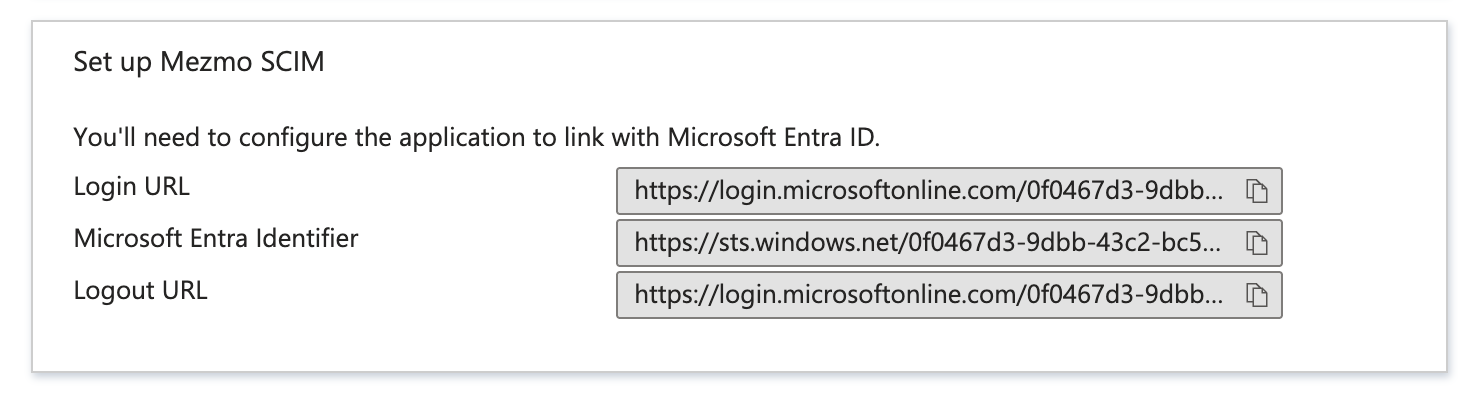
- Paste this value in Mezmo's Identity provider sign-in URL field.
- From section 3 in Azure, download the Federation Metadata XML
- Drop this file in Mezmo's Drop metadata.xml here to begin
- Finally click Save Config
Finally
Setup should now be complete. You can now use the URL you copied in Step 1 to log into Mezmo through Azure Entra ID
Was this page helpful?