> ## Documentation Index
> Fetch the complete documentation index at: https://docs.mezmo.com/llms.txt
> Use this file to discover all available pages before exploring further.
# Create Processor Groups
> Bundle related Processors into a reusable, shareable group to simplify your Pipeline Map and manage their configuration together.
This Pipeline component is in Beta development, and should be used in Production environments with caution. Contact your Mezmo Account Manger to have this feature enabled. If you encounter any issues, please notify [Mezmo Support](mailto:support@mezmo.com).
## What is a Processor Group?
A Processor Group is a set of Processors that perform a specific function within your Pipeline. For example, you may have a series of [Encrypt Field](/telemetry-pipelines/encrypt-fields-processor) and [Redact](/telemetry-pipelines/redact-processor) Processors that function as a [Compliance](/practioner-guide-data-optimization/pipeline-module--security-and-compliance) group for Personally Identifying Information, or you may have an [Event to Metric Processor](/telemetry-pipelines/event-to-metric-processor) and an [Aggregate Processor](/telemetry-pipelines/aggregate-processor) that work together in an [Event to Metric](/practioner-guide-data-optimization/pipeline-example--convert-200-events-to-metrics) group.
By grouping these processors into a single re-usable component, you can simplify your Pipeline Map, and more easily manage the configuration of the Processors in relation to each other. Published groups can also be shared with other members of your organization.
## Create a Processor Group
You can create a group either from an existing Processor chain within a Pipeline, or from within the Processor Groups directory.
### From an Existing Processor Chain
1. Open the Pipeline where you want to create the module in **Edit** mode.
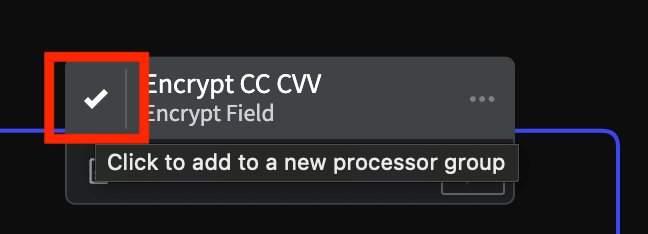
2. Select the Processors to add to the module by hovering over the upper-left corner of the Processor until a check mark appears, then click the check mark.
3. When you have selected all the Processors, click **Create Processor Group**.
4. Enter a **Name** and a **Description** for the Processor Group.
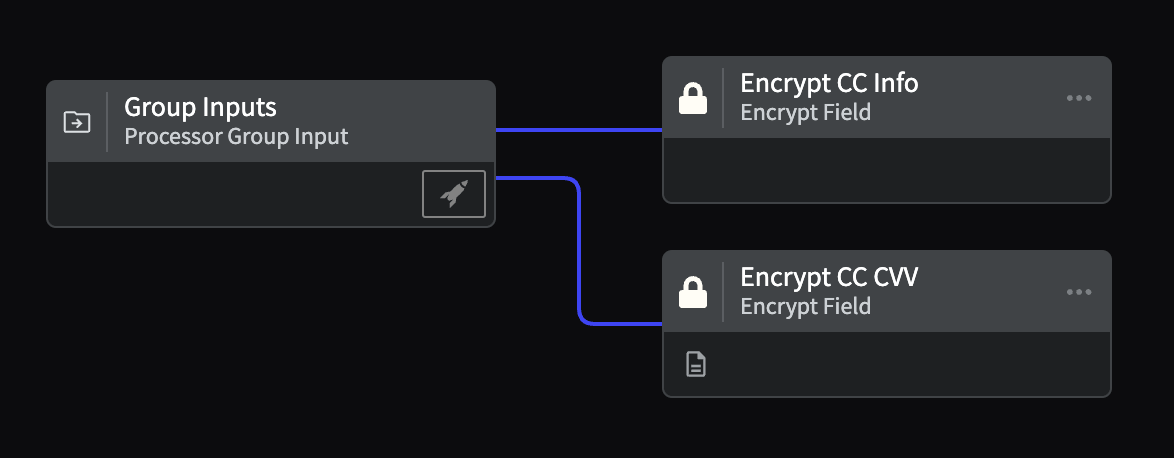
5. Click **Save**. The selected Processors will be shown as a stand-alone set with a **Group Inputs** Source. You can add a data sample to the Source and use the [Simulate and Test Pipeline Data Streams](/telemetry-pipelines/simulate-pipeline-data-flows) feature to test the data flowing into the module.
6. Click **Publish Processor Group**.
7. Click **Publish** to confirm.
8. The group will be added to the **Processor Group** directory, and will be available to other members of your organization.
 ### Within the Processor Group Directory
1. In the left-hand navigation menu of the Mezmo Web App, navigate to **Pipelines > Processor Groups**.
2. Click **New Processor Group**.
3. Click **Add Processor**.
4. Select and configure the Processors for your group.
5. When you are finished building your group, click **Save**.
6. To share the group with other members of your organization, click **Publish Processor Group**.
7. Click **Publish** to confirm. Other members of your organization will be able to access the group through the Processor Groups directory.
If your group contains multiple Processors in a linear chain with a single output from the last Processor, you will only see the name of the final Processor in the group node. If you have multiple Processors with multiple outputs, you will see the name of each Processor in the group node, with their own data egress points. To view all the outputs for a group, click **View Outputs** in the group's options menu.
## Add a Processor Group to a Pipeline
1. Open the Pipeline where you want to add the group in **Edit** mode.
2. Click **Add Processor**.
3. Select the **Processor Groups** tab.
4. Select the group you want to add.
5. Add the group to the Pipeline.
### Within the Processor Group Directory
1. In the left-hand navigation menu of the Mezmo Web App, navigate to **Pipelines > Processor Groups**.
2. Click **New Processor Group**.
3. Click **Add Processor**.
4. Select and configure the Processors for your group.
5. When you are finished building your group, click **Save**.
6. To share the group with other members of your organization, click **Publish Processor Group**.
7. Click **Publish** to confirm. Other members of your organization will be able to access the group through the Processor Groups directory.
If your group contains multiple Processors in a linear chain with a single output from the last Processor, you will only see the name of the final Processor in the group node. If you have multiple Processors with multiple outputs, you will see the name of each Processor in the group node, with their own data egress points. To view all the outputs for a group, click **View Outputs** in the group's options menu.
## Add a Processor Group to a Pipeline
1. Open the Pipeline where you want to add the group in **Edit** mode.
2. Click **Add Processor**.
3. Select the **Processor Groups** tab.
4. Select the group you want to add.
5. Add the group to the Pipeline.