> ## Documentation Index
> Fetch the complete documentation index at: https://docs.mezmo.com/llms.txt
> Use this file to discover all available pages before exploring further.
# Organize Visualizations by Category
> Group Boards, Views, and Screens into Categories to organize your Mezmo visualizations and manage them under Settings.
You can organize Boards, Views, and Screens by Categories. There are two ways to create Categories.
* When you create the Board, Screen, or View and give it a name and category.
* By going to the Categories screen and adding a new Category.
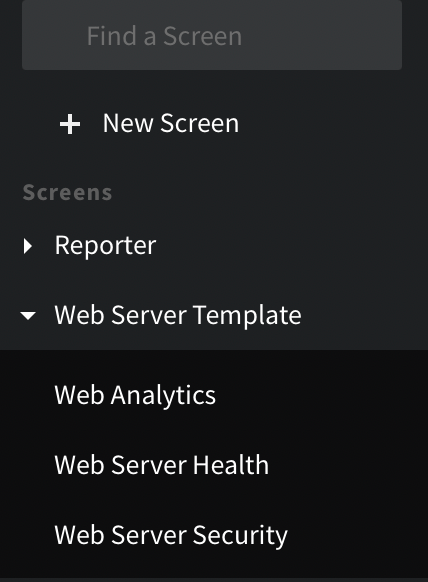 ## Manage Categories
* Manage all of your categories under Settings > Categories.
* New categories will be empty. Drag Views, Boards, or Screens to Categories to organize information.
## Feature Notes
* A View, Board, or Screen can be part of more than one Category.
* Deleting a Category, does not delete the View, Board, or Screen.
## Manage Categories
* Manage all of your categories under Settings > Categories.
* New categories will be empty. Drag Views, Boards, or Screens to Categories to organize information.
## Feature Notes
* A View, Board, or Screen can be part of more than one Category.
* Deleting a Category, does not delete the View, Board, or Screen.