> ## Documentation Index
> Fetch the complete documentation index at: https://docs.mezmo.com/llms.txt
> Use this file to discover all available pages before exploring further.
# OneLogin SAML Setup
> Configure OneLogin as a SAML identity provider for Mezmo single sign-on using a custom connector and downloaded SAML metadata.
This feature is only available for customers on an Enterprise plan, and is restricted to **Owner** and **Admin** user roles. Please contact your Customer Support Manager or [support@mezmo.com](mailto:support@mezmo.com) for more information.
## Step 1: Get Your Mezmo Single Sign On URL
1. In your Mezmo app go to **Settings > Organization > Access Management**.
2. Go to **SAML Configuration** and copy the URL under **URL for the Single Sign On Service to Consume**.
3. Keep this URL available since it will be used in **Step 2: Configure OneLogin**.
## Step 2: Configure OneLogin
1. Log in to your instance of OneLogin.
2. Go to **Applications > Applications**. Then click **Add App**.
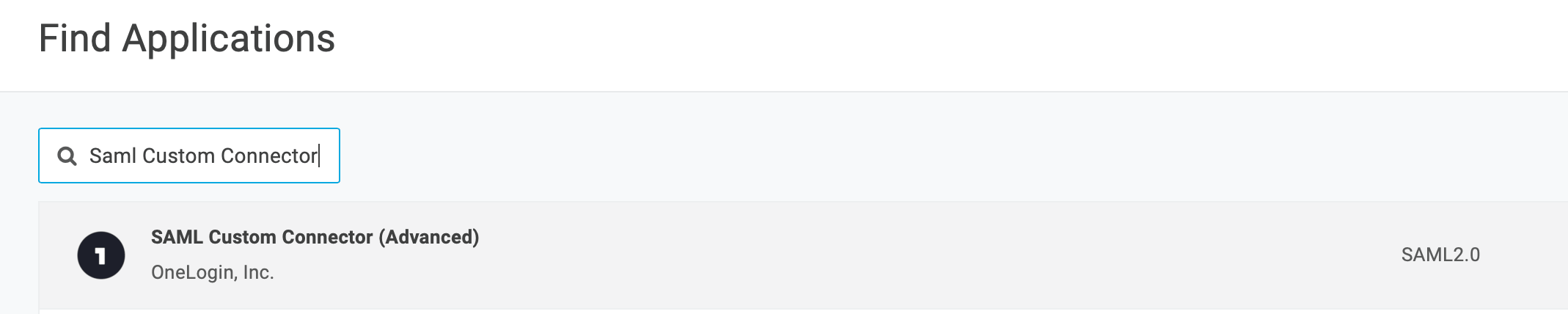
3. In the search box, search for `SAML Custom Connector`. Select `SAML Customer Connector (Advanced)`.
4. Give the connector a name and then Save.
5. Select configuration from the menu in OneLogin.
6. Enter the Mezmo Single Sign On Service to Consume URL from **Step 1: Get Your Mezmo Single Sign On URL**, into `ACS (Consumer) URL Validator` and `ACS (Consumer) URL`.
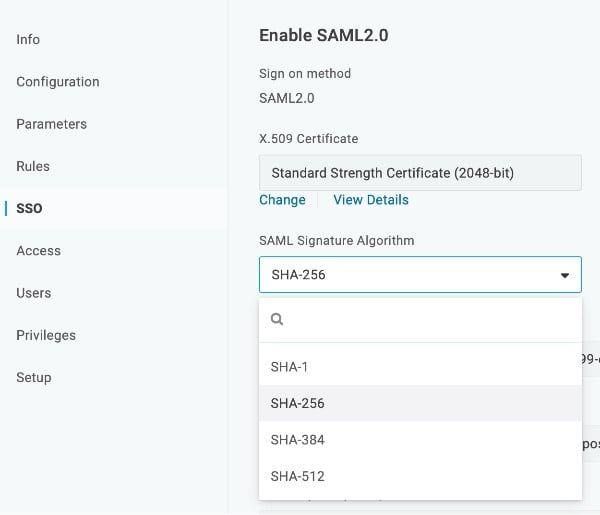
7. Select **SSO** from the left menu.
8. Make sure the **SAML Signature Algorithm** is SHA-256 in the dropdown.
## Step 3: SAML Configuration
 1. In OneLogin, go to the **SSO** tab.
2. In the **More Actions** dropdown, select **SAML Metadata**. An XML file will download.
3. In your Mezmo app, go to **Settings > Organization > Security**.
4. Toggle **SAML Sign-in** to on.
5. In **SAML Configuration** upload the XML file downloaded.
6. Save and your OneLogin SSO is ready to go.
1. In OneLogin, go to the **SSO** tab.
2. In the **More Actions** dropdown, select **SAML Metadata**. An XML file will download.
3. In your Mezmo app, go to **Settings > Organization > Security**.
4. Toggle **SAML Sign-in** to on.
5. In **SAML Configuration** upload the XML file downloaded.
6. Save and your OneLogin SSO is ready to go.