> ## Documentation Index
> Fetch the complete documentation index at: https://docs.mezmo.com/llms.txt
> Use this file to discover all available pages before exploring further.
# Manage Members
> Invite, edit, and remove members, assign roles and groups, and handle join requests for your Mezmo organization's team.
Each Mezmo Organization allows for a certain number of users determined by your [plan](https://www.mezmo.com/pricing). Users who join your Mezmo Organization are called Members. Members of a Mezmo Organization are also called a Team.
Organization administrators can:
* Add and remove Organization members
* Assign roles and privileges to members
* Limit each member's access to Mezmo resources
* Decide how Mezmo users can discover and join your Organization
* Toggle different methods of signing into your Organization
## Manage Team
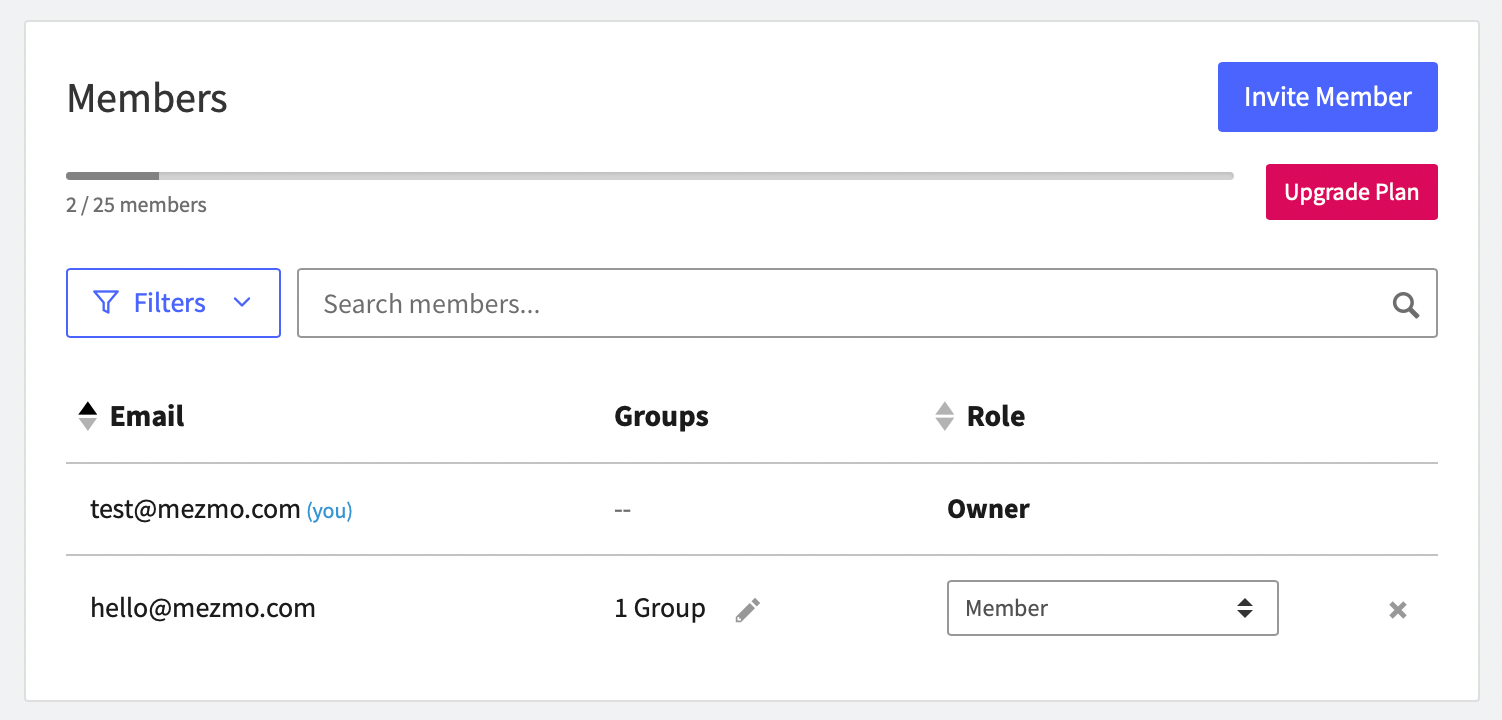
The Manage Team screen shows each Mezmo Organization member with their email, groups, and [role](/docs/rbac). You can also see how many people your plan lets you have on your team.
 ## Invite Members
When you invite a member, Mezmo sends an email invitation to the address provided prompting the user to either create a Mezmo account or sign in using [SSO](/docs/enterprise-saml-sso).
To add a member:
1. Go to [Members](https://app.mezmo.com/manage/team) and click **Invite Member**.
2. Enter the email address of the person who you want to add.
3. Select the [role](/docs/rbac) that the member will be assigned to.
4. Select the groups that the member will be assigned to. Members with no assigned groups will have access to all logs.
5. Click **Invite Member** to send an email invitation to the member.
## Edit a Member
You can modify each member's groups and roles at any time, including while they have an outstanding invitation. You can't change a member's email address after their account has been created.
To edit a member's group, click the pencil icon in the **Groups** column. This opens a window where you can select the groups that the member will be assigned to.
To edit a member's role, select the desired role from the drop-down in the Role column.
## Remove a Member
To remove a member from your Organization, click the gray `X` next to the member's role. This won't delete the user's account, but will revoke their membership to your Organization.
## Manage Join Requests
If your Organization is [discoverable](/docs/manage-access), users who aren't currently members of your Organization can ask to join it. When this happens, the email addresses configured to receive join request notifications will receive an email with links to either approve or deny the request. You can also use the Join Requests screen to review outstanding requests.
## Invite Members
When you invite a member, Mezmo sends an email invitation to the address provided prompting the user to either create a Mezmo account or sign in using [SSO](/docs/enterprise-saml-sso).
To add a member:
1. Go to [Members](https://app.mezmo.com/manage/team) and click **Invite Member**.
2. Enter the email address of the person who you want to add.
3. Select the [role](/docs/rbac) that the member will be assigned to.
4. Select the groups that the member will be assigned to. Members with no assigned groups will have access to all logs.
5. Click **Invite Member** to send an email invitation to the member.
## Edit a Member
You can modify each member's groups and roles at any time, including while they have an outstanding invitation. You can't change a member's email address after their account has been created.
To edit a member's group, click the pencil icon in the **Groups** column. This opens a window where you can select the groups that the member will be assigned to.
To edit a member's role, select the desired role from the drop-down in the Role column.
## Remove a Member
To remove a member from your Organization, click the gray `X` next to the member's role. This won't delete the user's account, but will revoke their membership to your Organization.
## Manage Join Requests
If your Organization is [discoverable](/docs/manage-access), users who aren't currently members of your Organization can ask to join it. When this happens, the email addresses configured to receive join request notifications will receive an email with links to either approve or deny the request. You can also use the Join Requests screen to review outstanding requests.