> ## Documentation Index
> Fetch the complete documentation index at: https://docs.mezmo.com/llms.txt
> Use this file to discover all available pages before exploring further.
# Manage Groups
> Create, edit, and delete groups that restrict which logs members can access using search queries in your Mezmo organization.
Groups let you determine which logs users have access to using a search query. For example, you could create a group that only shows logs originating from Node.js applications, then assign your company's Node.js developers to that group. When those users sign into Mezmo, the only logs they will see are Node.js logs. This affects all logs including those that appear in the event feed, when creating alerts, and when displaying graphs.
## Create a Group
Before creating a group, keep in mind that:
* Only [Members](/docs/manage-access) can be added to Groups. Owners and Admins can not be added to groups.
* Only Owners and Admins can manage groups.
* Owners and Admins can access log data without restriction.
1. Go to [**Settings > Organization > Groups**](https://app.mezmo.com/manage/groups).
2. Click **Add Group**.
3. Enter a name for the group.
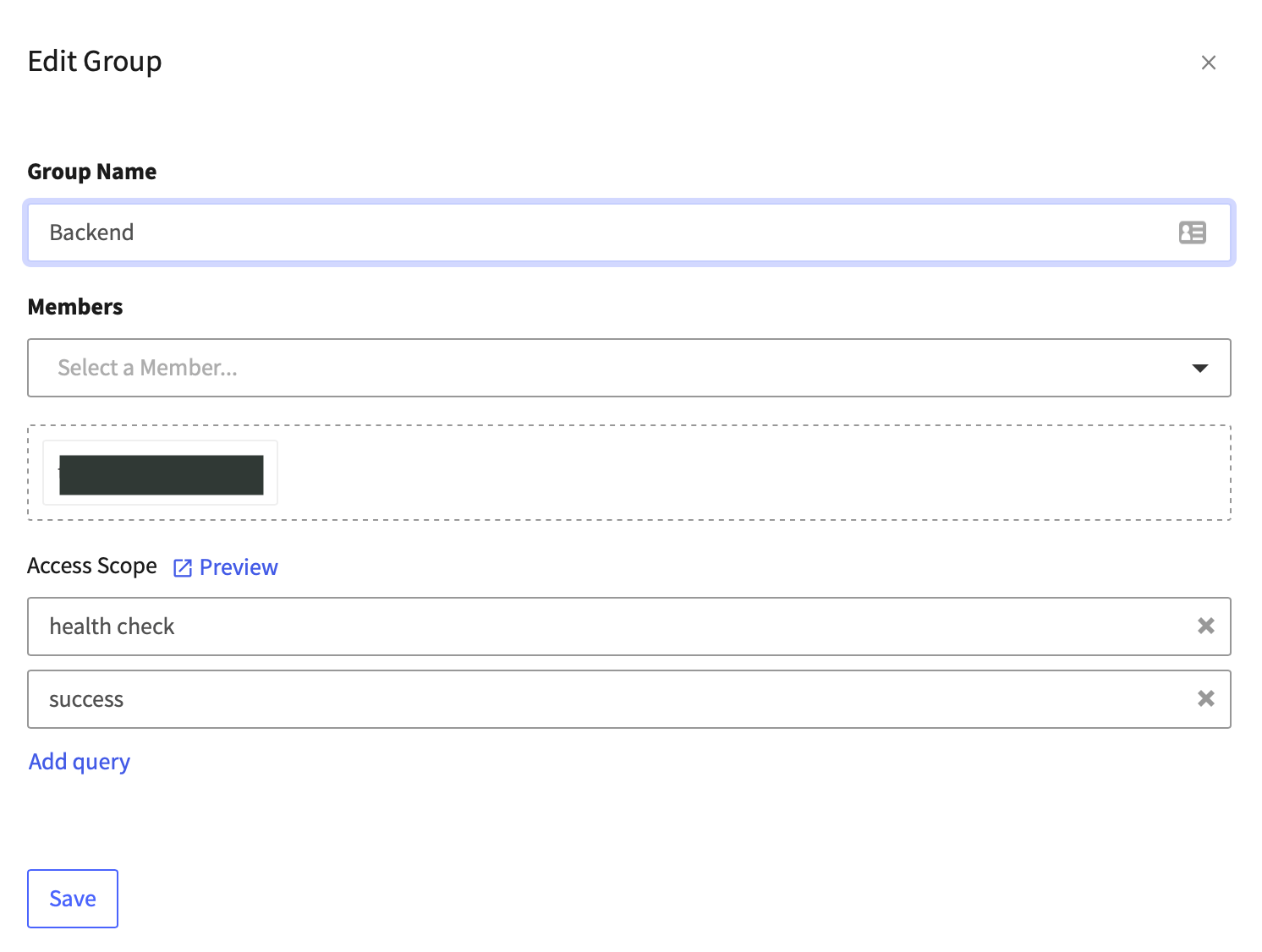
4. Select the Members who you want to add to this group. When a user is added to a group, their log visibility is immediately restricted to the scope of the group.
5. Click **Add query** to enter the search query that will specify which logs the group members will have access to. You can test your query by clicking Preview, or clear it by clicking the `X`. Leaving this box blank will prevent the group members from seeing any logs.
To learn more about creating queries, see [Search](/docs/search-and-filter#simple-search).
 ## Edit a Group
1. Scroll to the group that you want to edit and click **Edit**.
2. Make your modifications.
3. Click **Save** to apply your changes.
## Delete a Group
1. Scroll to the group that you want to delete and click **Delete**.
2. Confirm the deletion by clicking **Delete** again.
## Edit a Group
1. Scroll to the group that you want to edit and click **Edit**.
2. Make your modifications.
3. Click **Save** to apply your changes.
## Delete a Group
1. Scroll to the group that you want to delete and click **Delete**.
2. Confirm the deletion by clicking **Delete** again.