> ## Documentation Index
> Fetch the complete documentation index at: https://docs.mezmo.com/llms.txt
> Use this file to discover all available pages before exploring further.
# Create and Edit Views
> Save filters and search queries as reusable Views, organize them by category, and attach alerts to monitor specific log conditions.
Views are saved shortcuts to a specific set of filters and search queries for log lines. You can also [Add Alerts to Views](/docs/add-alerts-to-views) to notify you when specific conditions are met. Mezmo provides alert integrations for several messaging and notification platforms, including [Slack](/docs/slack-alert-integration), [PagerDuty](/docs/pagerduty-alert-integration), and [DataDog](/docs/datadog-alert-integration), and [Templates for Views, Boards, and Screens](/docs/using-templates) for a variety of log data types.
The first time you visit Views, you'll see the default **Everything** view, which shows all log lines.
## Create a View
For an example of how to create a new screen, you can create a view that shows 404 errors.
1. Select [View](https://app2.logdna.com/logs/view) in your app.
2. In the [Search](/docs/search-and-filter), enter `response:404 request:*`. This will return any 404 response from your web app.
3. You can check the query by selecting a log line and expanding the information.
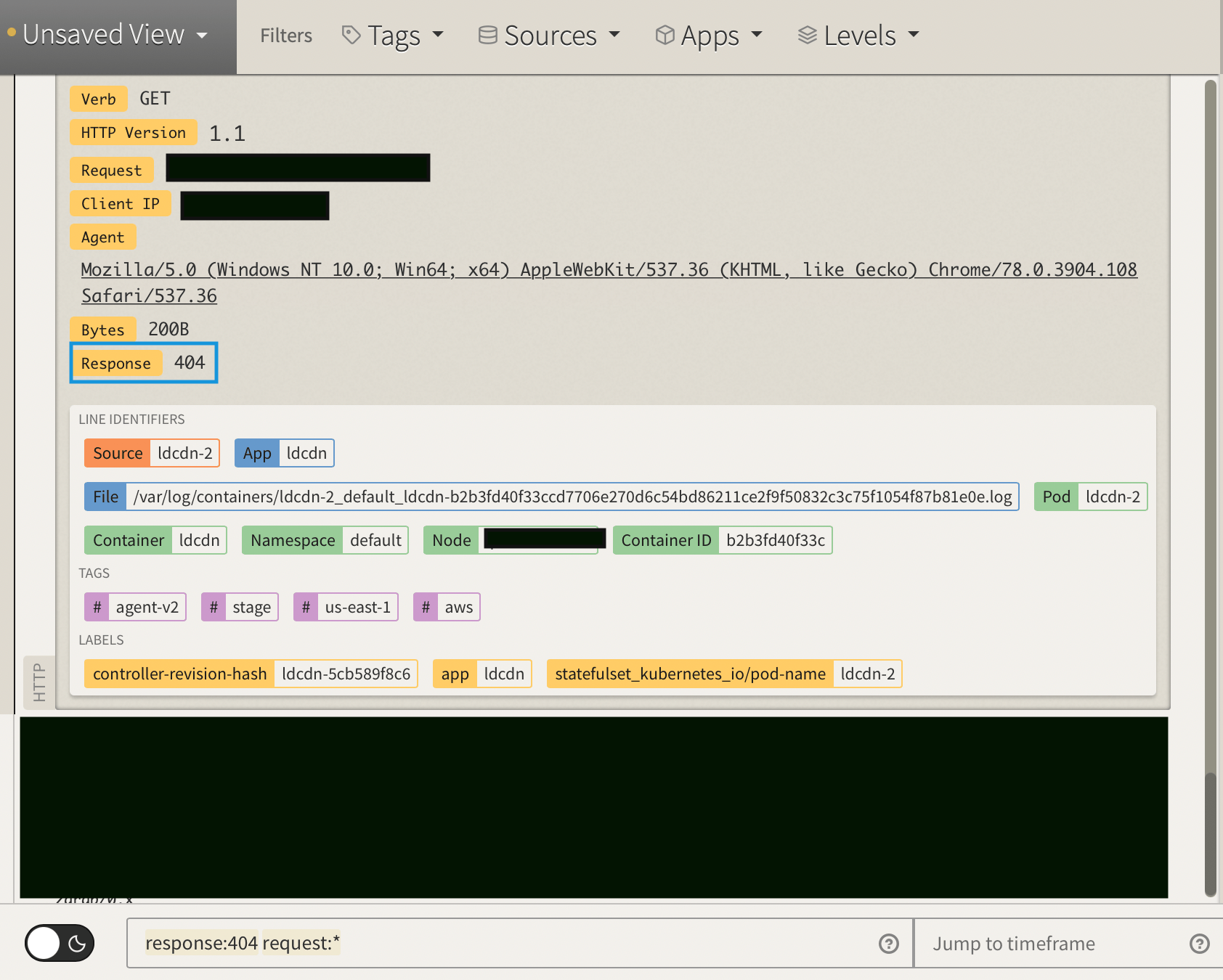 4. Notice that your view has changed from **Everything** to **Unsaved View.**
5. Click **Unsaved View > Save as new view.**
6. Name your view.
7. Select an existing [category](/docs/organize-visualizations-by-category) or add a new one. Categories let you organize Views. You can create new Views and add them to the same Category or create a new one.
8. Select an existing alert or add a new alert.
9. After saving, you'll see your View saved in the menu, in the category you created.
4. Notice that your view has changed from **Everything** to **Unsaved View.**
5. Click **Unsaved View > Save as new view.**
6. Name your view.
7. Select an existing [category](/docs/organize-visualizations-by-category) or add a new one. Categories let you organize Views. You can create new Views and add them to the same Category or create a new one.
8. Select an existing alert or add a new alert.
9. After saving, you'll see your View saved in the menu, in the category you created.