> ## Documentation Index
> Fetch the complete documentation index at: https://docs.mezmo.com/llms.txt
> Use this file to discover all available pages before exploring further.
# Create a Parsing Template
> Parse ingested log lines into fields using extractors, delimiters, trim, concatenate, and convert operations, then validate and activate the template.
Must be an [admin or owner](/docs/rbac) to use this feature.
You'll learn how to parse ingested log lines. This will cover the parsing screen, the parsing mini map, and using some of the parsing functions available. You can parse all four values or parse one and move onto Validate Templates.
You'll use the following log lines throughout and you'll parse:
* `ip_address: 111.00.11.10`
* `timestamp: 14/Nov/2018:10:35:00 +0000`
* `response: 200`
* `upstream_length_time: 49/0.008`
```bash theme={null}
111.00.11.10 - [111.00.111.10] - - [14/Nov/2018:10:35:00 +0000] "GET /logdna_test/v1/health
HTTP/1.1" 200 44 "-" "Mozilla/5.0 (compatible; MSIE 9.0; Windows NT 6.1; Trident/5.0; AppInsights)"
586 0.004 [logdna_test-service-80] 111.00.11.10:80 49 0.008 200 230abc56545logdna1238e
```
## Parse a String
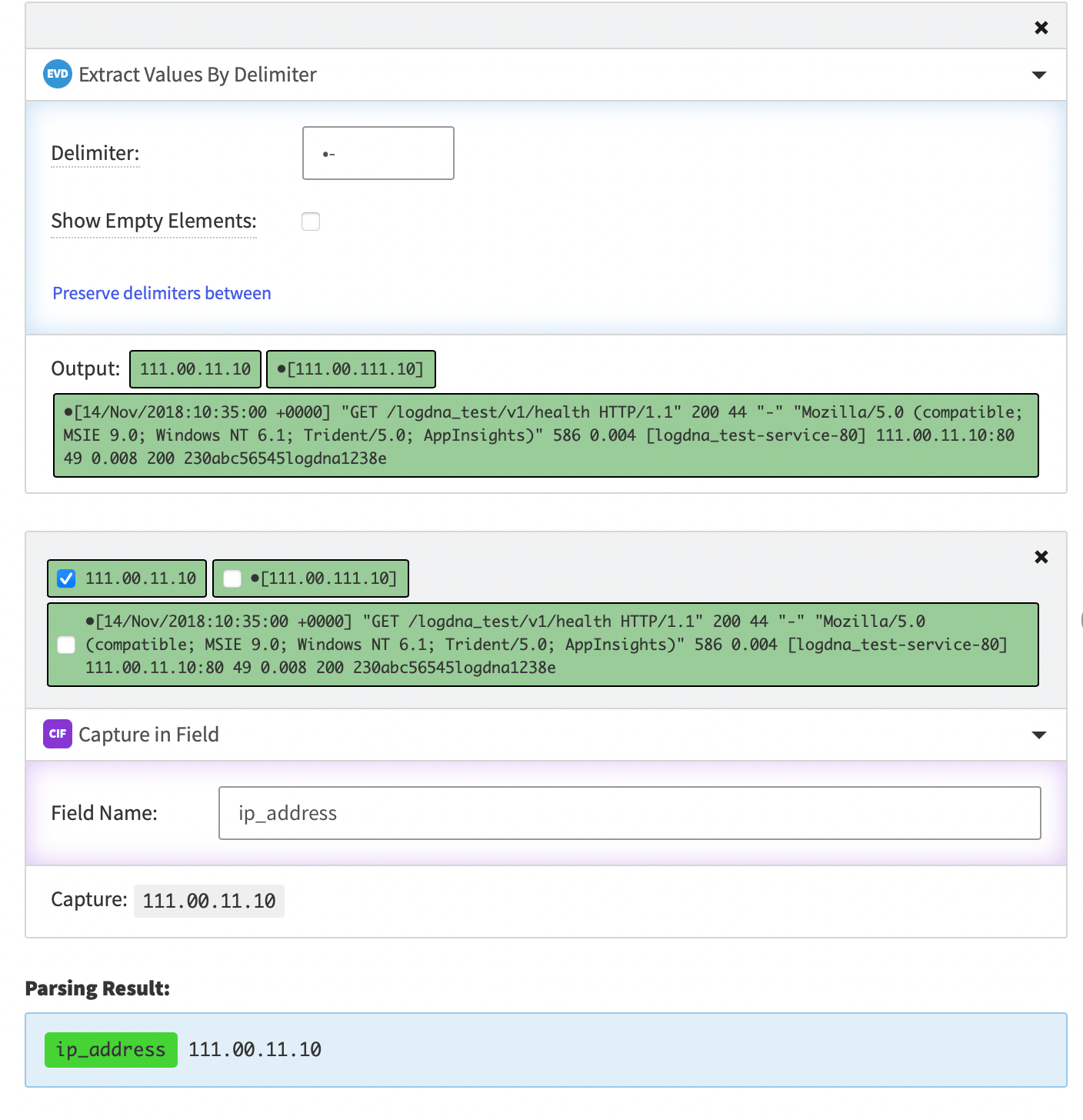
You are going to parse `111.00.11.10` from the log line.
1. Go to [Parsing Templates](https://app.mezmo.com/manage/custom-parsing/templates) and click **Create a Template**.
2. In Choose a Log Line, select **Add my own log line**. You'll be using the log line from the introduction.
3. Click **Build a Parsing Template**. You will see the line you entered as a Reference Line.
4. First, you are going to break the text down into smaller parts to so you can use the part you want. In Choose an Extractor, select **Extract Value By Delimiter**.
5. Enter a space and then a dash.
6. Now you should see `111.00.11.10` and `*[111.00.111.10]` as part of the lines parsed.
7. Select `111.00.11.10` and choose the operator,**Capture in Field.** Give a label `ip_address`.
8. The result is shown at the bottom of the parsing page.
 ## Parse a Timestamp
You'll parse `14/Nov/2018:10:35:00 +0000` from the log line.
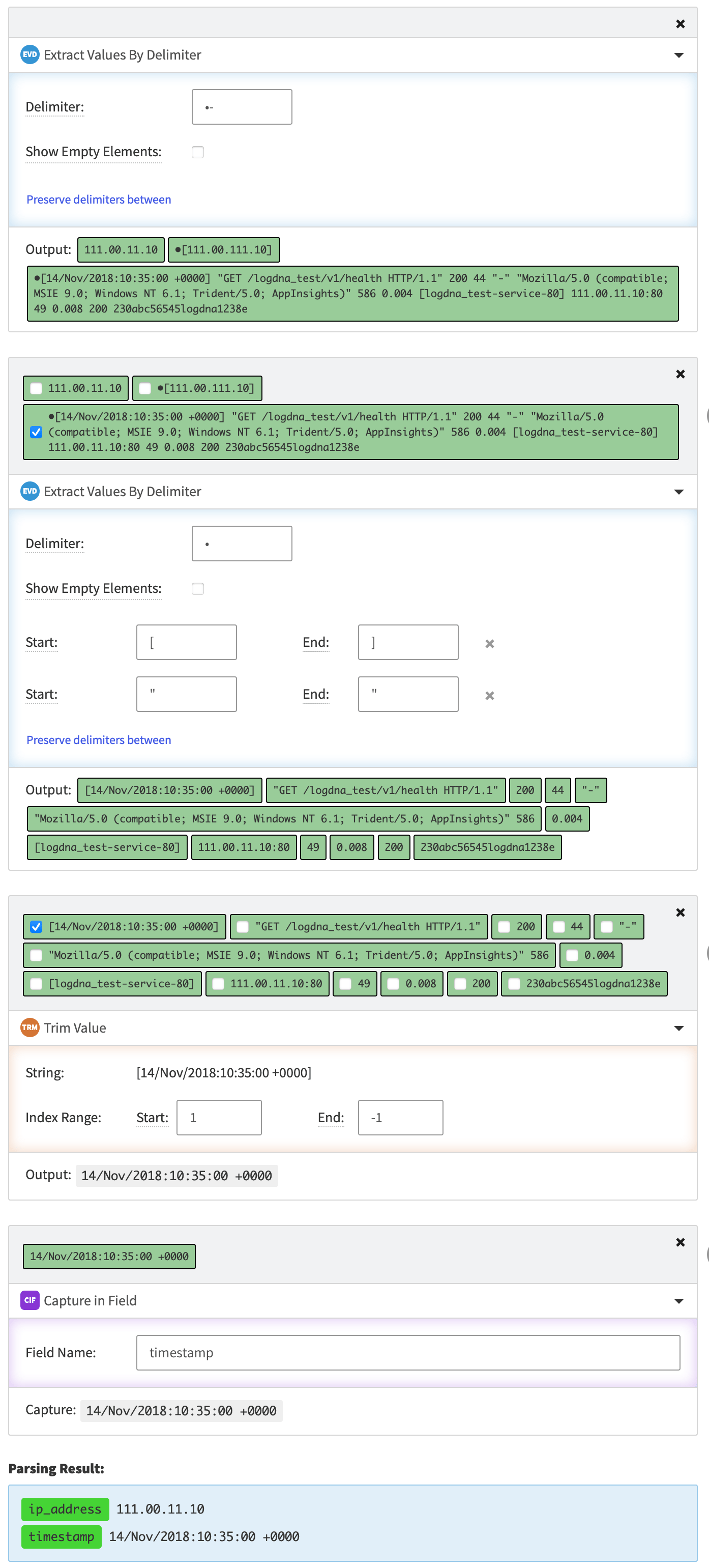
1. Select the circle with the plus sign to create a **Sibling Operator.** When you create a sibling operator, the mini map updates to show the relationship between operators and the template screen updates to have a new Choose an Operator. Learn more in [Edit Parsing Operations with the Mini-Map](/docs/edit-parsing-operations-with-the-mini-map).
2. Check the longer output that includes the timestamp.
3. Choose an operator > **Extract by Delimiter.**
4. Enter a space into the delimiter.
5. Notice the output has split everything by space, including part of timestamp. To fix the timestamp, you need to preserve some of the spaces.
6. Click **Preserve delimiters between.**
7. Start use a left square bracket `[` and end use a right square bracket, `]` .
8. Click **Preserve delimiters between** again\*\*.\*\* Use double quotes `"` for both start and end. You'll notice that the timestamp is now cleaned up, along with some of other output.
9. Now we need to remove the brackets from the timestamp, so it's easier to run diagnosis against. Select the timestamp. `[14/Nov/2018:10:35:00 +0000]` , choose operator, T**rim Value**.
10. Trim Value is 0 based counting. Start, enter `1` , for end enter `-1`.
11. Your output should be the timestamp.
12. Choose operator > **Capture in Field** and label it `timestamp` .
13. So far, you've captured two fields from the log line.
## Parse a Timestamp
You'll parse `14/Nov/2018:10:35:00 +0000` from the log line.
1. Select the circle with the plus sign to create a **Sibling Operator.** When you create a sibling operator, the mini map updates to show the relationship between operators and the template screen updates to have a new Choose an Operator. Learn more in [Edit Parsing Operations with the Mini-Map](/docs/edit-parsing-operations-with-the-mini-map).
2. Check the longer output that includes the timestamp.
3. Choose an operator > **Extract by Delimiter.**
4. Enter a space into the delimiter.
5. Notice the output has split everything by space, including part of timestamp. To fix the timestamp, you need to preserve some of the spaces.
6. Click **Preserve delimiters between.**
7. Start use a left square bracket `[` and end use a right square bracket, `]` .
8. Click **Preserve delimiters between** again\*\*.\*\* Use double quotes `"` for both start and end. You'll notice that the timestamp is now cleaned up, along with some of other output.
9. Now we need to remove the brackets from the timestamp, so it's easier to run diagnosis against. Select the timestamp. `[14/Nov/2018:10:35:00 +0000]` , choose operator, T**rim Value**.
10. Trim Value is 0 based counting. Start, enter `1` , for end enter `-1`.
11. Your output should be the timestamp.
12. Choose operator > **Capture in Field** and label it `timestamp` .
13. So far, you've captured two fields from the log line.
 ## Parse a Number
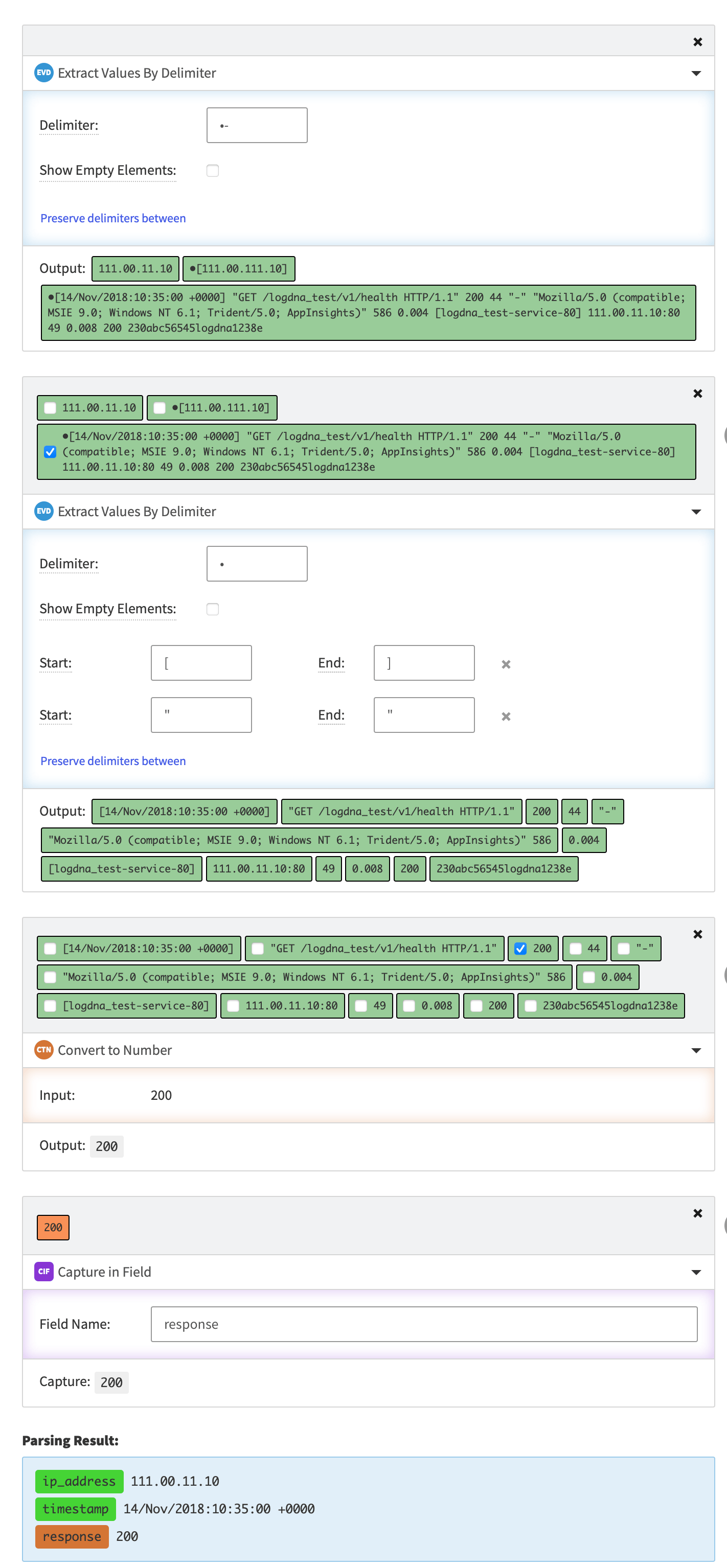
You are going to parse `200` from the log line.
1. Using the mini map, select Trim Value. Trim Value is orange, you can also hover over the icons in the mini map. Using the mini map lets you jump between parsed areas. By starting from Trim Value, you can start from a place where the 200 is already separated from the other values, making it easier to use.
2. Click **Add a Sibling Operator**.
3. Select 200.
4. Choose an operator > **Convert to Number.**
5. Choose an operator > **Capture in Field**. Field name is `response.`
## Parse a Number
You are going to parse `200` from the log line.
1. Using the mini map, select Trim Value. Trim Value is orange, you can also hover over the icons in the mini map. Using the mini map lets you jump between parsed areas. By starting from Trim Value, you can start from a place where the 200 is already separated from the other values, making it easier to use.
2. Click **Add a Sibling Operator**.
3. Select 200.
4. Choose an operator > **Convert to Number.**
5. Choose an operator > **Capture in Field**. Field name is `response.`
 ## Concatenate Log Lines
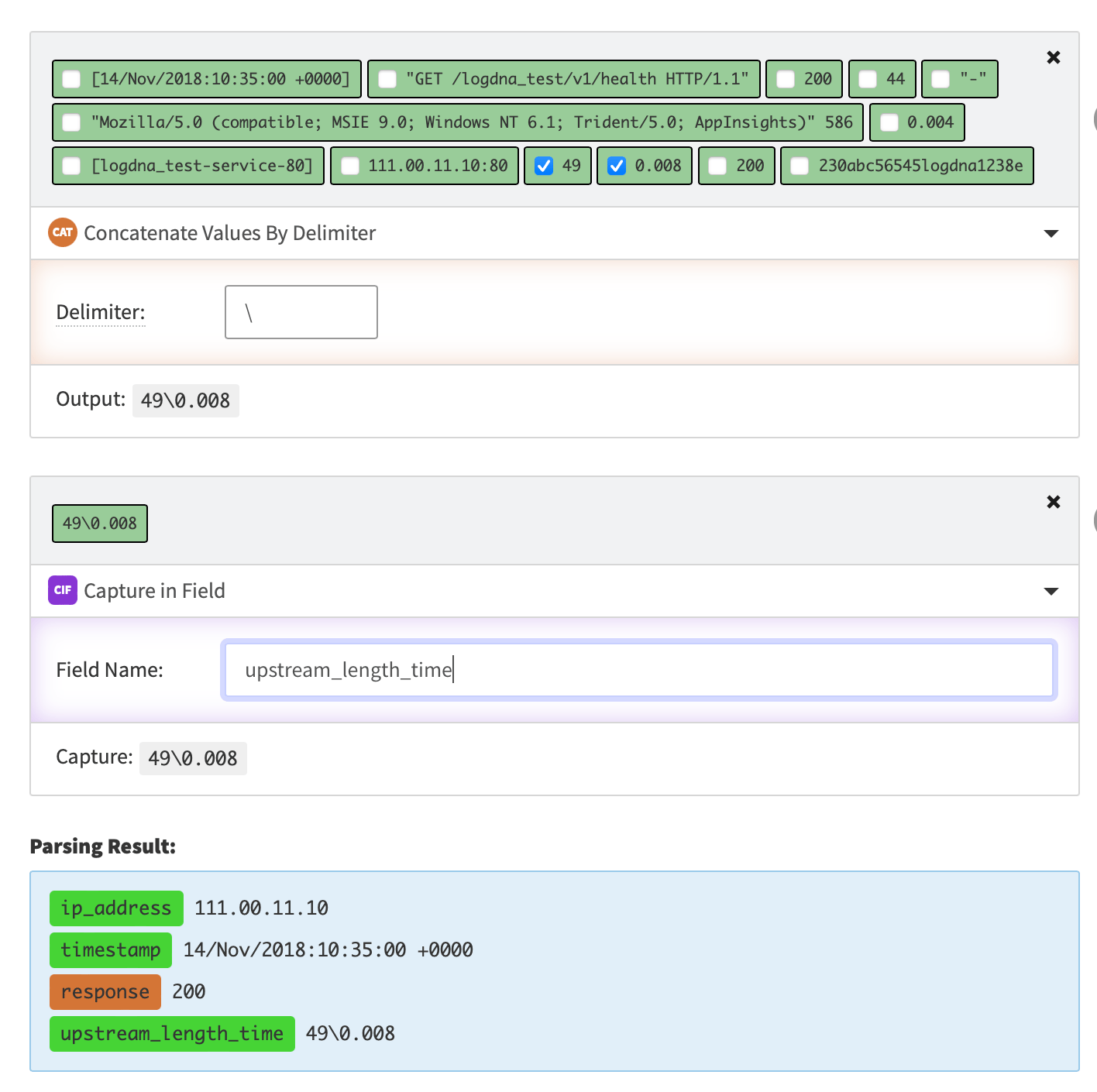
You are going to parse `49` and `0.008` from the log line.
1. Create a sibling operator to either Trim Value or Convert to Number in the mini map.
2. Select `49` and `0.08` from the output.
3. Choose an operator > **Concatenate Values by Delimiter**.
4. Enter a forward slash `\` as the value.
5. Choose an operator > **Capture in Field**.
6. The field name is `upstream_length_time.`
## Concatenate Log Lines
You are going to parse `49` and `0.008` from the log line.
1. Create a sibling operator to either Trim Value or Convert to Number in the mini map.
2. Select `49` and `0.08` from the output.
3. Choose an operator > **Concatenate Values by Delimiter**.
4. Enter a forward slash `\` as the value.
5. Choose an operator > **Capture in Field**.
6. The field name is `upstream_length_time.`
 ## Validate Template
Before you can make a template active, you must check that the log lines you want are working.
1. Add a log line to test against in **Add a Line**. You can use the example line. When testing you want to be sure to test multiple lines by adding lines.
2. You can also test by adding a query to `Apply this parsing template to sample lines matching this query:`. This step is required and is the scope of the parsing template.
3. Mark the log lines as valid or invalid.
1. If a line is marked as invalid you'll be taken back to the Parsing Template step.
4. Activate changes to apply your changes.
Active parsing templates are only applied to the lines that come in after the template has been enabled. All log lines that were ingested prior to the template becoming active are not parsed by the parsing template.
## Results
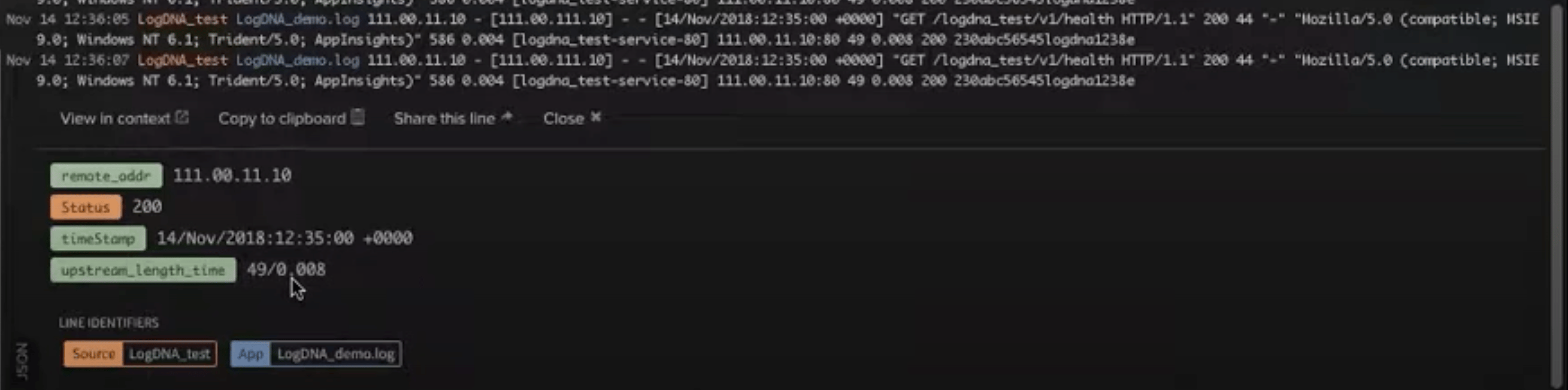
The log lines the template applies to will show in the Log Viewer.
## Validate Template
Before you can make a template active, you must check that the log lines you want are working.
1. Add a log line to test against in **Add a Line**. You can use the example line. When testing you want to be sure to test multiple lines by adding lines.
2. You can also test by adding a query to `Apply this parsing template to sample lines matching this query:`. This step is required and is the scope of the parsing template.
3. Mark the log lines as valid or invalid.
1. If a line is marked as invalid you'll be taken back to the Parsing Template step.
4. Activate changes to apply your changes.
Active parsing templates are only applied to the lines that come in after the template has been enabled. All log lines that were ingested prior to the template becoming active are not parsed by the parsing template.
## Results
The log lines the template applies to will show in the Log Viewer.