> ## Documentation Index
> Fetch the complete documentation index at: https://docs.mezmo.com/llms.txt
> Use this file to discover all available pages before exploring further.
# Azure Entra ID SAML Setup
> Configure SAML single sign-on between Mezmo and Azure Entra ID by exchanging sign-on URLs and uploading the federation metadata XML.
This feature is only available for customers on an Enterprise plan, and is restricted to **Owner** and **Admin** user roles. Please contact your Customer Support Manager or [support@mezmo.com](mailto:support@mezmo.com) for more information.
## Step 1: Get Your Mezmo Single Sign On URL
1. In your Mezmo app go to **Settings > Organization > Access Management**.
2. Go to **SAML Configuration** and copy the URL under **Single Sign On URL**.
3. Enable SAML Sign-in
4. Keep this URL available since it will be used in **Step 2: Configure Azure**.
## Step 2: Configure Azure
1. In Azure Portal go to **Enterprise Applications** and then into your **Mezmo SCIM** (if you've created one) or **Create your own application**
2. Click **Set up single sign on**.
3. Under **Basic SAML Configuration** click Edit and enter the following values (replacing 123456789 with your account id
1. **Identifier (Entity ID):** `logdna-saml/123456789`
2. **Reply URL (Assertion Consumer Service URL):** `https://app.logdna.com/auth/saml-consume/123456789`
3. **Sign on URL:** `https://app.logdna.com/auth/saml/123456789`
4. Click Save
## Step 3: Update Mezmo SAML Configuration
1. From section 4 in the Azure setup, please copy the value from Login URL:
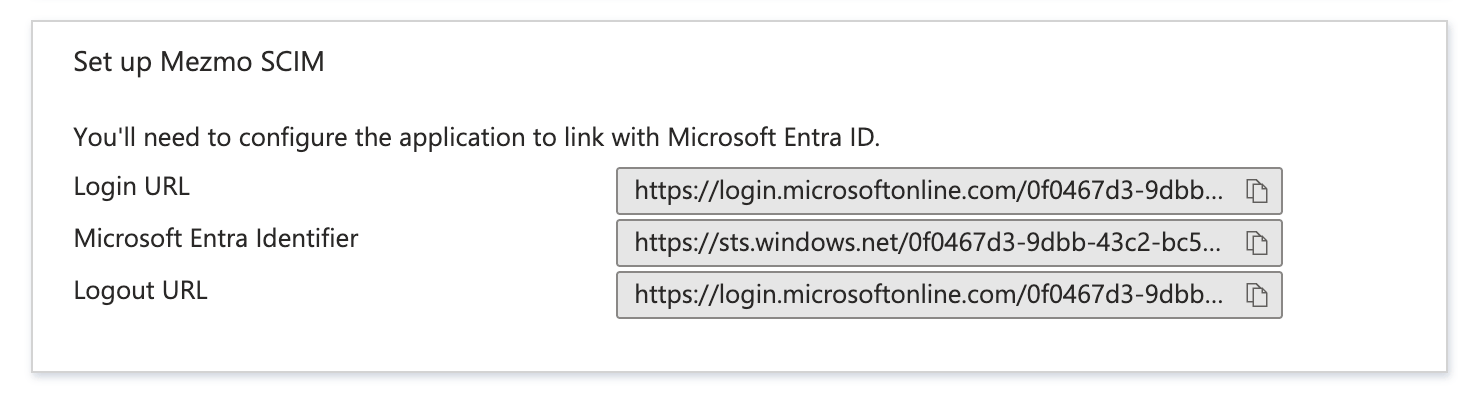 2. Paste this value in Mezmo's **Identity provider sign-in URL** field.
3. From section 3 in Azure, download the Federation Metadata XML
4. Drop this file in Mezmo's **Drop metadata.xml here to begin**
5. Finally click **Save Config**
## Finally
Setup should now be complete. You can now use the URL you copied in Step 1 to log into Mezmo through Azure Entra ID
2. Paste this value in Mezmo's **Identity provider sign-in URL** field.
3. From section 3 in Azure, download the Federation Metadata XML
4. Drop this file in Mezmo's **Drop metadata.xml here to begin**
5. Finally click **Save Config**
## Finally
Setup should now be complete. You can now use the URL you copied in Step 1 to log into Mezmo through Azure Entra ID