> ## Documentation Index
> Fetch the complete documentation index at: https://docs.mezmo.com/llms.txt
> Use this file to discover all available pages before exploring further.
# Shared Sources
> Create OpenTelemetry log, metric, and trace Shared Sources in Mezmo and save their access keys for the optimization workshop.
***
## Creating Shared Sources
In order to complete this workshop, you will need a Mezmo account with Pipeline enabled. If you do not have an account, you can sign up for a free trial [here](https://www.mezmo.com/sign-up-mezmo-platform).
Please feel free to select either of the demo logs upon sign up, we will be connecting new data from a local OpenTelemetry Demo deployment. You can explore [Mezmo Flow](/telemetry-pipelines/about-mezmo-flow) or continue on with the workshop.
## Step 1: Create an OpenTelemetry Log Shared Source
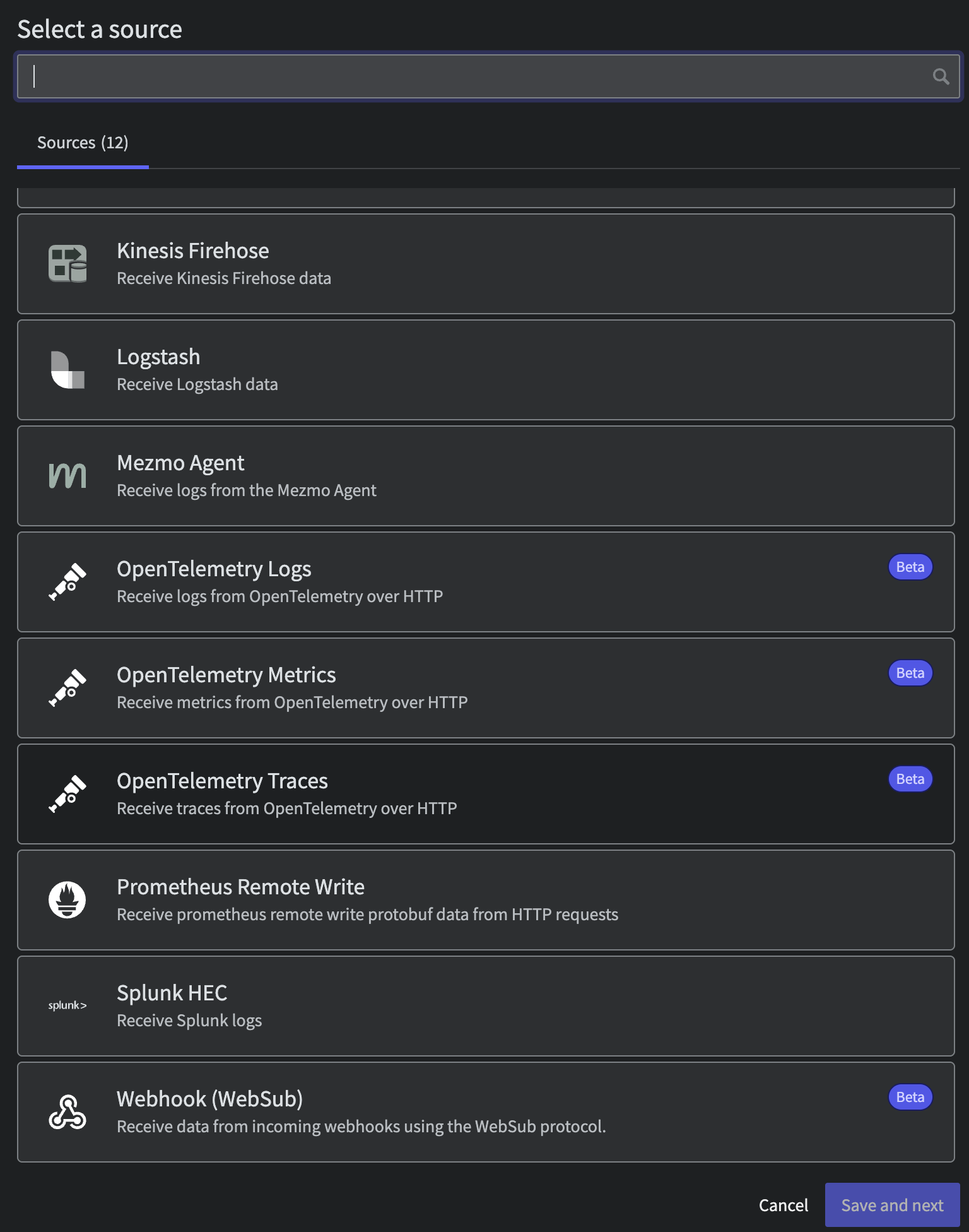
Once you have an account, go ahead and [Create a new Shared Source](https://app.mezmo.com/pipelines/shared-sources). Select `OpenTelemetry Logs` and call it what you will, be sure to **save your created Access Key** as you will need this later.
 Note that a [Shared Source](/telemetry-pipelines/shared-sources) is a powerful way to re-use sources within Mezmo without needing to configure new integrations. Organizations can take advantage of them to provide teams the self-service ability to pull in sanitized and normalized telemetry data from any stream needed.
 ## Step 2: Create an OpenTelemetry Metric Shared Source
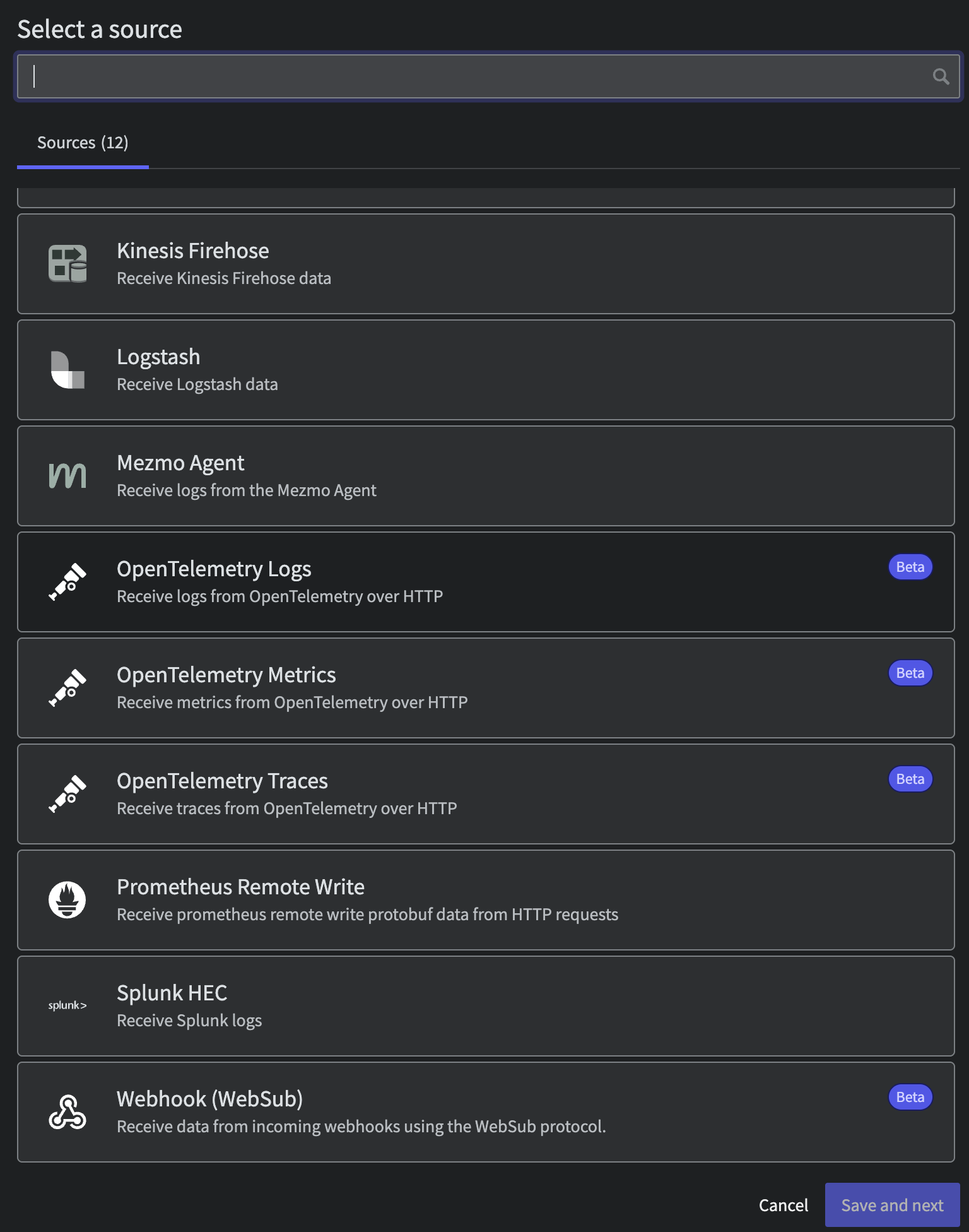
Repeat the prior step but this time select `OpenTelemetry Metrics`. Once again be sure to write that Access Key down for later.
## Step 2: Create an OpenTelemetry Metric Shared Source
Repeat the prior step but this time select `OpenTelemetry Metrics`. Once again be sure to write that Access Key down for later.
 ## Step 3: Create an OpenTelemetry Trace Shared Source
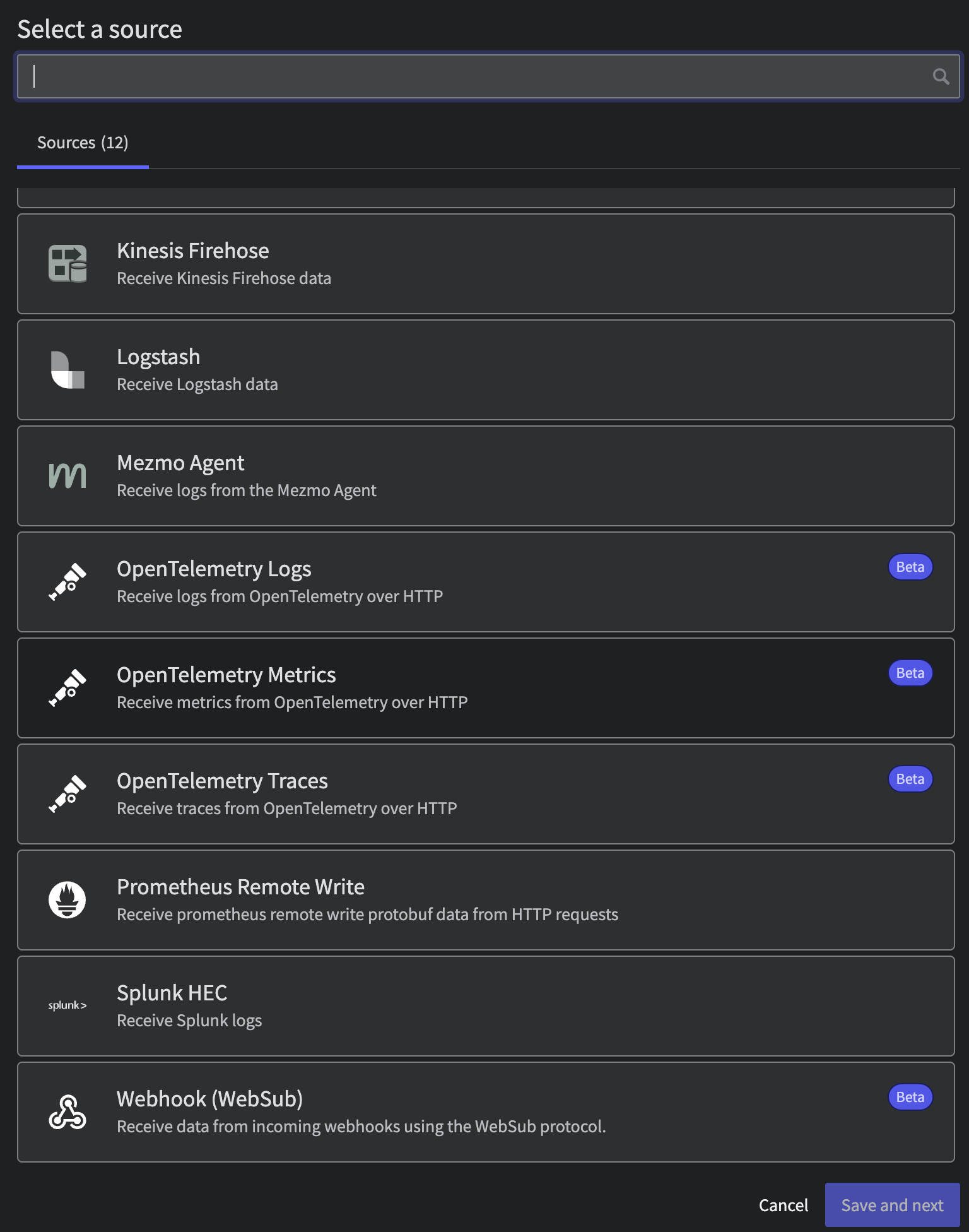
Finally create a `OpenTelemetry Metrics` Shared Source and save that Access Key.
## Step 3: Create an OpenTelemetry Trace Shared Source
Finally create a `OpenTelemetry Metrics` Shared Source and save that Access Key.